Why Do Card Printers Jam in Self-Service Kiosks?
A card printer in a self-service kiosk operates under conditions that a desktop printer rarely sees. The unit may sit in an unheated lobby, run 200 cards before lunch, and then sit idle for four hours. It has no operator to fan the card stack, wipe the rollers, or notice that the output hopper is almost full. A jam is therefore not a single fault; it is the visible result of several small stresses accumulating along the card path.
Most jams trace back to four areas: the input feeder, the printer transport, the encoding or flipping station, and the output path. The printer itself may be mechanically fine. The cause can be a card that is too smooth, too rough, bent, humid, or covered in dust from the kiosk fan intake. Static electricity often makes unprinted cards cling together. The pick roller then grabs two cards instead of one, and the top card enters the print path at an angle.
This is why kiosk-based issuance equipment is usually specified as a complete system, not just a printer bolted into a cabinet. A Card Self-Service Kiosk integrates the card feeder, printer, encoder, and output hopper around a constrained card path. That integration reduces the number of transitions where a card edge can catch, but it does not remove the need for routine inspection.
The four failure points behind most kiosk jams
Card jams almost always start at a transition point. A card moves from a stack into a pick mechanism, from the feeder into the printer, from the printer into a flipper or encoder, and then out to the user. Each transition has a lip, a sensor, a roller, or a guide plate.
1. Card input and separation
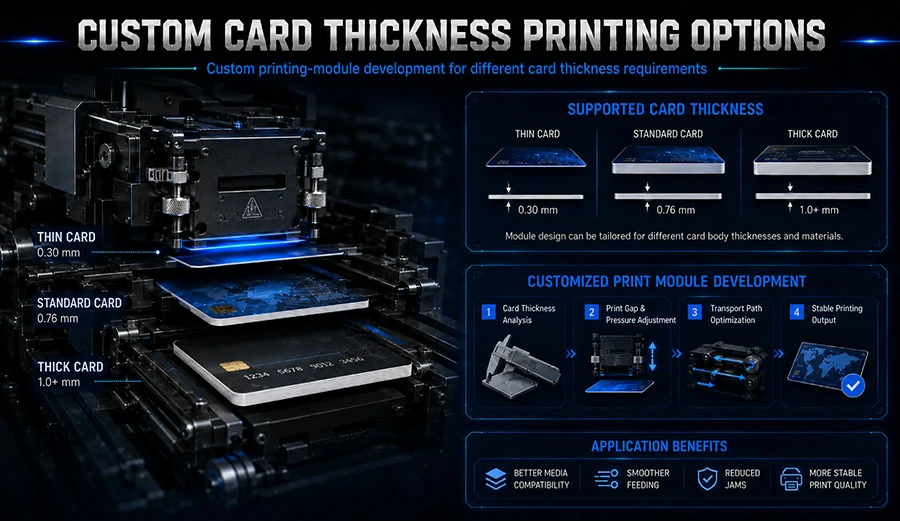
The input hopper often holds 100 to 500 blank CR80 cards. The standard card size is 53.98 mm × 85.60 mm, or roughly 2.125 in × 3.375 in, with a typical thickness of 0.76 mm / 30 mil. If cards are stored in a humid room, they absorb moisture and bow. A bowed card can still sit in the hopper correctly, but the pick roller may fail to separate it from the card below.
Static charge is another input problem. Low humidity increases static. The card surfaces create friction inside the shrink-wrap or hopper, and the resulting charge holds cards together. A pick mechanism that is designed to handle one card at a time can pull two or three if the static bond is strong enough. The first card enters the printer skewed; the second card catches the input guide; the kiosk reports a jam.
2. Printer transport path
Inside the printer, the card moves between heated printhead and platen roller. Dye-sublimation printing requires precise alignment. Warped cards can lift away from the platen or strike the printhead carriage. Cards that are too thick, or have rough punched edges from a cheap die, drag against the transport rollers.
Dust matters more in kiosks than it does on a desktop. Kiosks pull cooling air through vents, and that air carries fines from carpet, drywall, and exterior doors. The dust settles on the printer’s optical sensors. A sensor that cannot see the leading edge of the card will stop the card at the wrong point. The user sees a timeout, while the service log records a card position error.
3. Encoder and flipper modules
Many kiosk-issued cards require magnetic stripe encoding, contact chip encoding, contactless chip encoding, or all three. The card often must leave the print engine and pass through a separate encoder. The transition from printer to encoder is a common jam point because two independent modules must agree on timing, speed, and card position.
Flipper modules add another risk. A flipper rotates the card for double-sided printing. Cards with a slight bow can exit the flipper misaligned. Contactless encoding may require the card to pause inside an antenna area; if the timing is out of specification, the card stops and the next card butts against it.
4. Card output and hopper
The output path rarely gets enough attention. A user may not see the card drop, so they press the screen again. The kiosk issues a second card. The first card is still sitting in the output tray. Over time, cards stack in front of the output slot and push back into the printer exit. This is less a printer jam than a delivery jam, but the service result is the same.
Kiosk environment and duty cycle
Temperature and humidity shape jam rates. Card stock stabilizes best in moderate conditions, typically around 15°C to 30°C and 30% to 70% relative humidity. A lobby with direct sunlight on the kiosk cabinet can push internal temperatures higher. Cold air near a building entrance can make cards stiff. High humidity makes cards curl. Low humidity increases static.
Duty cycle matters too. Continuous runs heat the printhead and platen; long idle periods let dust settle and rollers develop flat spots. The worst pattern for a self-service kiosk is often short bursts of high demand followed by hours of idle time. Thermal expansion in the print engine changes small clearances. A card that passes cleanly at one temperature may bind at another.
Card stock and cleaning supplies
No printer can correct bad media. Kiosk operators sometimes buy the cheapest blank PVC or composite cards available, but card surface quality directly affects friction. Cards need clean die-cut edges, consistent surface finish, and a material that is compatible with dye-sublimation or retransfer printing. Cards with embedded chips may have slightly raised surfaces around the chip module. If the printer is not set for the correct card type, the raised area can catch.
Cleaning kits are not optional. Printers in kiosks should follow a preventive cleaning schedule based on card count. Dust, debris from card edges, and adhesive residue from lamination film all collect on the rollers. A cleaning card removes some of it. Manual cleaning of the pick roller, platen, and sensors is still necessary. The exact interval depends on the environment and print volume.
Common jam types and likely fixes
| Jam symptom | Most likely cause | First response |
|---|---|---|
| Feeder picks two cards at once | Static cling or cards stuck together | Fan the card stack, control humidity, clean pick roller |
| Card stops at printhead | Warped card or dirty edge sensor | Remove card, inspect bow, clean sensor path |
| Card skews entering encoder | Feeder/printer misalignment or bent card guide | Inspect guide plates and input rollers |
| Flip station jams on second side | Curled card or flipper timing error | Check card flatness and flipper calibration |
| Output tray backs up | User reissued card or full hopper | Clear output path, add tray-full sensor check |
| Intermittent jams after idle period | Dust on rollers or flat spot on platen | Clean and rotate or replace worn rollers |
Design choices that reduce jams in kiosk-based issuance
The least reliable kiosk is often the one that was built by adapting a desktop printer into a cabinet without testing the full card path. Buyers should look at how the card enters and exits the enclosure, how the service door opens, and how the operator replaces the card hopper. A design that forces a technician to remove three panels to clear a jam will stay down longer than it should.
High-turnaround applications such as an Event Badge & Card Kiosk need fast card cycles and easy access for restocking. In those settings, the operator may load thousands of blank badges at a time. The pick mechanism and output path must handle thin, often pre-laminated badge stock without double-feeding. Dwell time in the print engine is short, so the kiosk relies on consistent card thickness and a clean input area.
Programs that issue secure credentials face a different stress pattern. A Personal ID Card Kiosk may encode a contact or contactless chip, print a portrait, and apply a topcoat in one pass. The card path includes more modules, which creates more transition points. Jam prevention depends on proper card profiles, firmware settings, and regular sensor cleaning.
Kiosk layout matters
The location of the printer inside the cabinet affects temperature and dust accumulation. A closed cabinet with a fan is not the same as climate control. The fan can draw in dust. The printer should sit in an area where the service technician can reach the input hopper, output bin, and cleaning points without removing major structural panels.
Cable routing can also cause phantom jams. A ribbon cable or sensor wire that is tied too tightly may pull a guide plate slightly out of alignment after the cabinet door has been opened and closed several hundred times. The printer’s diagnostics may report a card path error even though no card is stuck. The real fault is mechanical interference behind the printer.
Maintenance routine that prevents most jams
A practical routine catches most kiosk printer jams before they happen. Operators should log every service event with the card count, error code, and environmental conditions. Patterns emerge quickly. An error that repeats after 400 cards usually indicates a cleaning need. An error that repeats at 9:00 a.m. in winter usually indicates low temperature or humidity.
Audit the card stock. Open a fresh box and inspect the cards for bow, static, edge defects, or surface contamination. Do not load cards that have been stored against an exterior wall or in direct sun. Allow card stock to acclimate before loading if the temperature difference is large.
Clean the card path on a schedule, not only after a jam. Use the manufacturer’s recommended cleaning card and then physically inspect the pick roller and exit area. Many jams leave debris behind. Removing the stuck card is only half the repair.
Finally, pay attention to the user experience. A screen that says “please wait” with no progress indicator encourages repeated button presses and duplicate issuance. A clear status message, a countdown timer, and a visible card output indicator reduce user-induced delivery jams. The kiosk printer is one component in a system, and the system fails when any part of that path is ignored.
FAQ
Why does a kiosk card printer jam more often than a desktop card printer?
The kiosk operates without a nearby operator, often in variable temperature and humidity, with a larger input stack and more card path transitions. Dust, static, warped cards, and user behavior create more opportunities for a card to enter the path incorrectly.
What is the most common cause of double-feeding?
Static charge between blank cards is the most common cause in dry environments. The pick roller pulls one card, but the card below clings to it. Fanning the stack and keeping humidity in a moderate range helps reduce double feeds.
How often should a kiosk card printer be cleaned?
There is no single universal interval. Many programs clean after a set number of cards, typically in the low hundreds or after a heavy service window. Dusty environments, high-volume event use, and contact chip encoding may require more frequent cleaning.
Can a jam be caused by the kiosk software?
Yes. Timing mismatches between the kiosk controller and the printer or encoder can stop a card mid-path. A card position error may be logged as a jam even when no mechanical obstruction exists. Firmware and printer driver updates should be part of the maintenance plan.
Should the printer be replaced if it jams repeatedly?
Not automatically. Repeated jams often indicate a worn pick roller, a dirty sensor, the wrong card stock, or an alignment issue. Service data should be reviewed before replacing the print engine. If the same card path transition fails after cleaning and alignment, replacement may be justified.